
Choose your device. Start selling.
One checkout for your phone, tablet, and computer.
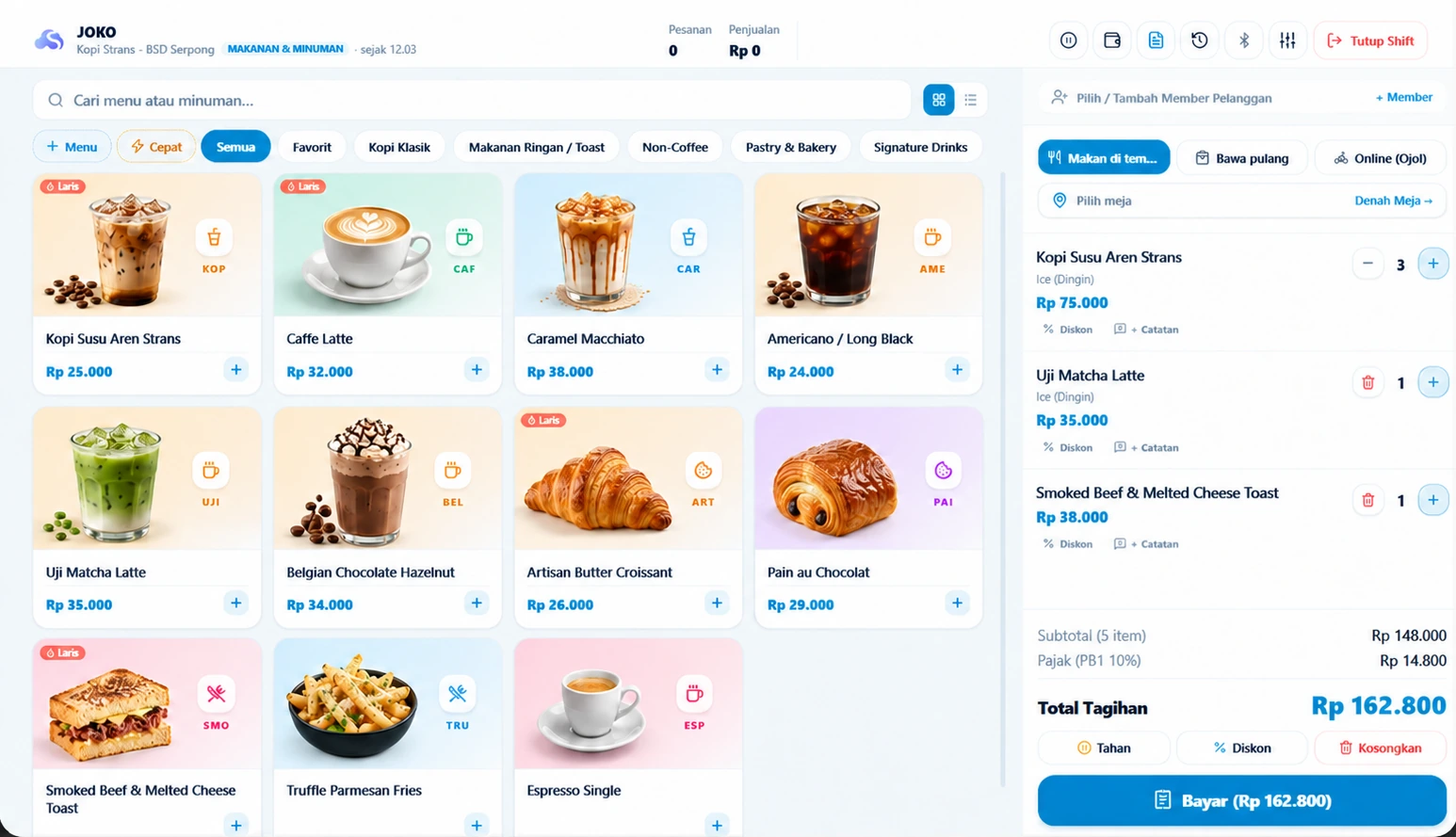
In your hand.
At your checkout.
Use Strans POS on your Android phone or tablet.
Download the app
Get the official release using the download button.
Install on your device
Open the file and follow the installation prompts.
Pair checkout
Enter the device code from your Dashboard.
APK guide & Chrome warnings
For .apk files when a release is available. If the link opens Google Play, follow the store’s installation steps.
- Download the official file. Check the file name and version.
- Open Chrome → Downloads. If prompted, allow installation only for Chrome or Files opening the APK.
- Follow Play Protect scanning. If allowed, choose Install → Open. Turn source permission off afterwards.
Chrome asks to confirm the file type? Check its source before choosing Download anyway. If flagged as harmful, blocked, or developer verification is incomplete, stop and contact our team. Keep Play Protect enabled.
Add a Home Screen icon on Android
- Open POS in Chrome. Tap the three-dot menu → Add to Home screen or Install and create shortcut.
- Confirm, then open the POS icon. If the option is missing, continue in the browser.
A bigger screen.
The same checkout.
Open Strans POS on your laptop or computer in a browser.
Open POS
Use Chrome or Microsoft Edge.
Add an app icon
Install the web app if the option is available.
Enter your code
Connect your outlet, then open a shift.
Add an app icon in Chrome / Edge
- Chrome: three-dot menu → Cast, save, and share → Install page as app, if available.
- Edge: three-dot menu → More tools → Apps → Install this site as an app, if available.
Confirm and open the new icon. Menu names may vary; you can always continue in the browser.
POS open? Connect your outlet.
Get a code in Dashboard → Cashiers & Devices.
View checkout pairing steps
- Register or sign in to the Dashboard and complete business setup.
- Generate a pairing code in the Dashboard's Cashiers & Devices menu.
- Open POS on the checkout device, enter the code, and open a shift.
Use an internet connection to sign in, pair devices, and sync data. Make sure transactions are synced before clearing browser data or changing devices.
First-sale guide