
PRINTERS & DEVICES
Connect a Bluetooth printer
Pair an Android receipt printer, select its paper width and check a test print before serving customers.
Before you start
- Use the Strans POS Android app and a Bluetooth Classic printer that accepts ESC/POS. Have paper, power and the manufacturer's pairing instructions ready.
- Support depends on the printer model and Android device. Some built-in Android printers need a manufacturer's SDK; Bluetooth Classic differs from BLE printing in a browser.
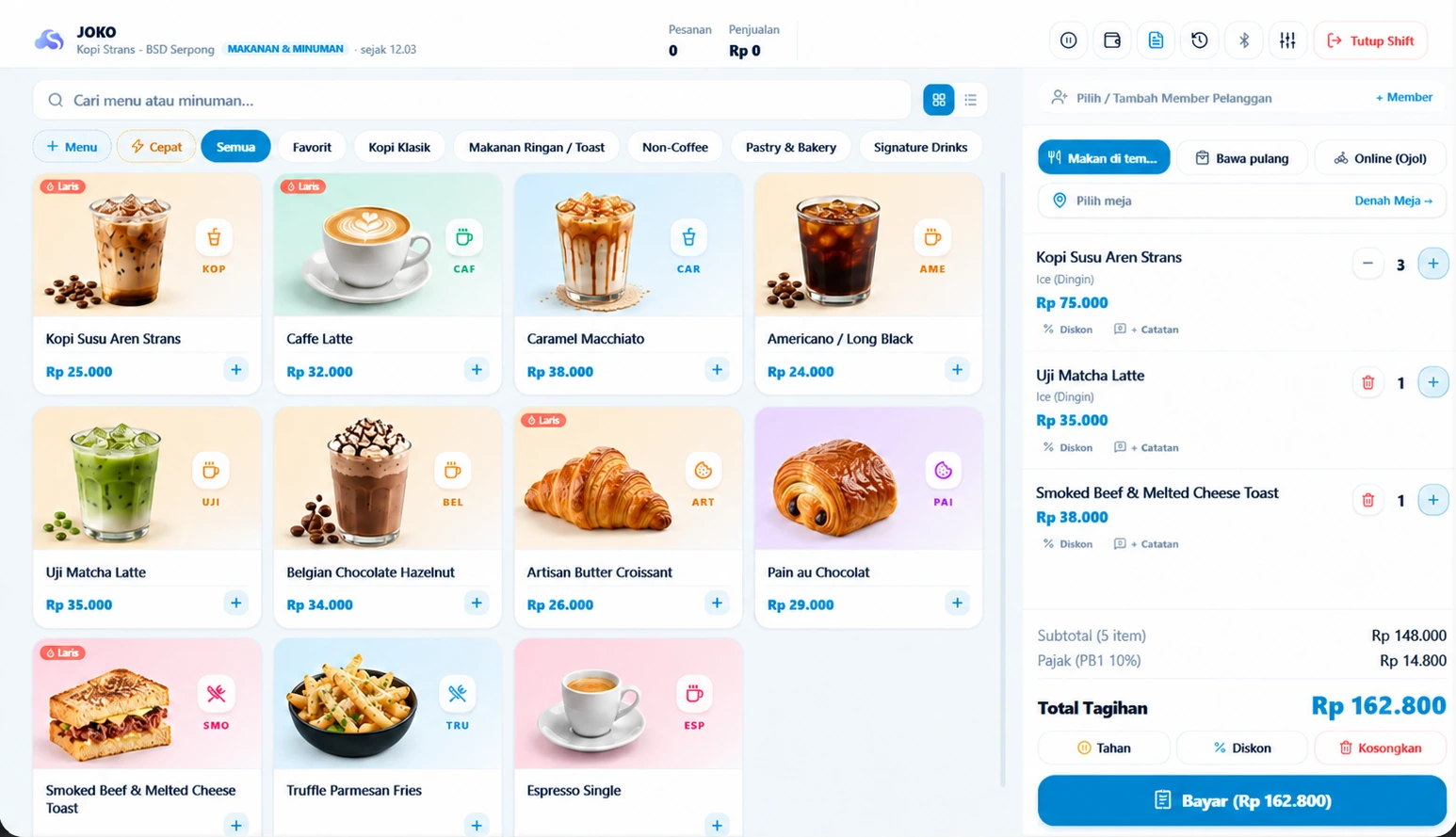
Checkout where sales are recorded. Printer settings open from Menu; this image does not show Bluetooth pairing.
Pair through Android Bluetooth
Power on the printer and enable Bluetooth on the phone or tablet. In Android Bluetooth settings, choose the correct printer and follow its manufacturer's instructions. If a pairing code is requested, use the code provided with the printer.
Make sure the printer is not connected to another checkout device. Return to Strans POS after Android shows the devices are paired.
Select the printer in Strans POS
Open Menu, then Printer Bluetooth. On Android, allow nearby-device access when prompted. Select Refresh or Update Bluetooth List if the printer is missing.
Match the device name and address, then select Connect for the intended printer. Android may list Bluetooth devices other than printers; do not choose a device simply because it appears first.
Set paper width and check a test print
Choose 58 mm or 80 mm under Paper Width to match the roll and printer specification. Once connected, select Test Print. Physically check text, receipt width, line breaks and paper output.
A data-sent message does not prove the paper output is correct. If output is blank or garbled, check the thermal-paper side, paper width and that model's ESC/POS support before using it for customers.
Save the selection and check later connections
Connected printers appear under Saved Printers on this device. Set a primary printer if needed. Enable Automatic Receipt Printing only after the test output meets your needs.
When a printer sleeps, powers off or leaves range, check its connection and reconnect the same printer. Automatic reconnection depends on the printer, permissions and Android. To reprint, open the same sale's receipt without repeating payment.
Check the result
The selected printer is connected and its test page is readable at the correct paper width. Check receipt output on the actual device you will use.
HELP WHEN YOU NEED IT
Troubleshooting
- Printer missing: check Android pairing, Bluetooth, power and nearby-device permission, then refresh the list.
- Connection failed: move closer, make sure another device is not using the printer, then select Connect again.
- Built-in or BLE printer fails: confirm its connection type and SDK requirements with the manufacturer. Not all Android printers use the same driver.