
STAFF & ACCESS
Set up staff and cashier PINs
Assign each employee an outlet, role and PIN, then check their POS access.
Before you start
- The owner or a staff administrator can open the Dashboard. Have the employee's assigned outlet ready.
- The POS device is paired with that outlet and has a connection for PIN verification.
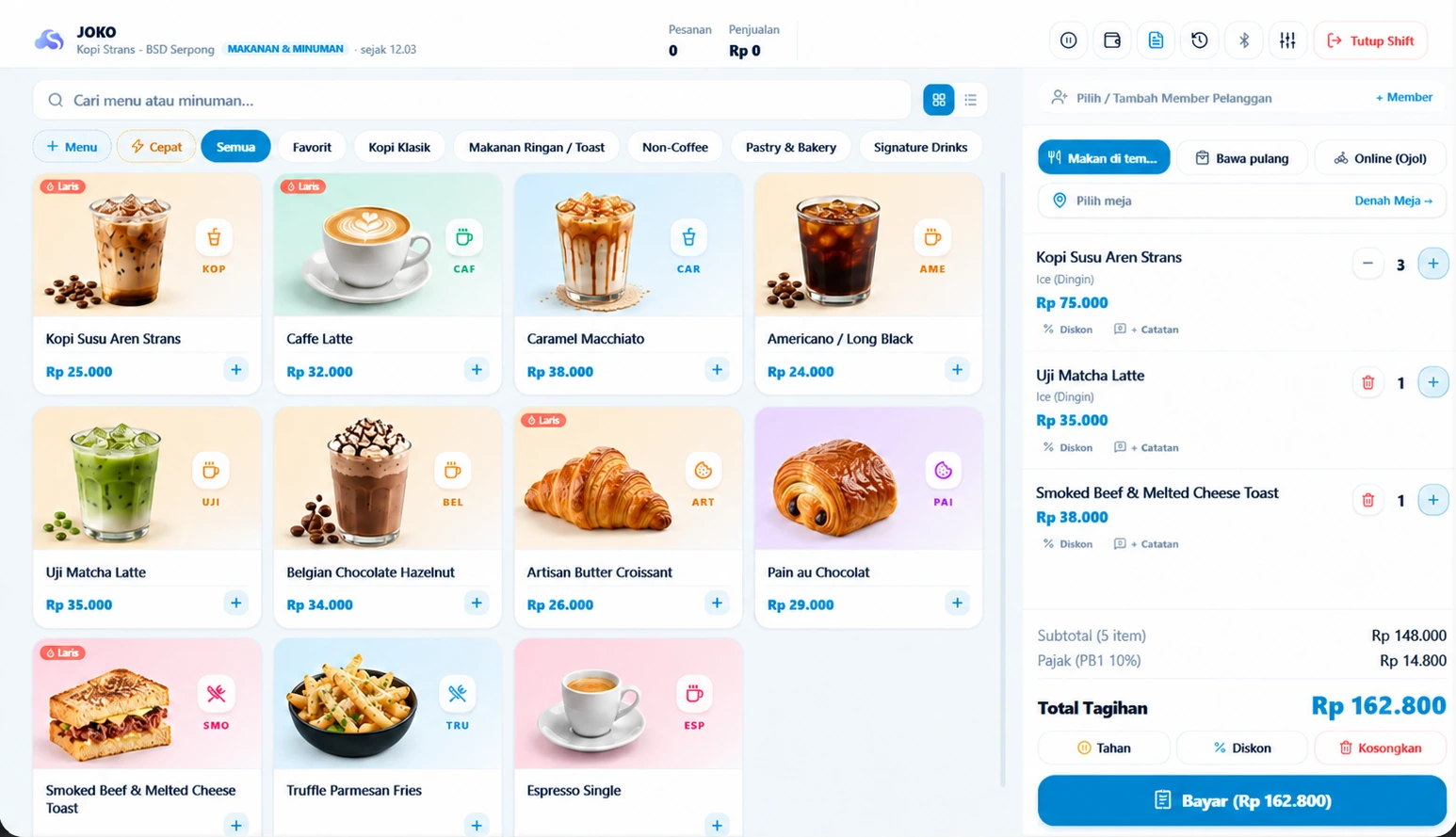
Checkout after an employee signs in and opens a shift. Staff and PIN settings are managed in the Dashboard.
Select the employee and outlet
In the Dashboard, open Team & Branches, then Staff & Access. Add an employee or select Edit beside an existing name. Enter their name, choose a role that matches their duties and assign an outlet.
Keep the account active. The POS cashier list follows the device's outlet; a device assigned to a single cashier also requires a matching employee assignment.
Set and save a four-digit PIN
For a new employee, enter exactly four digits as the cashier PIN and save. Wait for confirmation that saving succeeded. Share the PIN privately with that employee.
When you reopen the employee record, a saved PIN appears as four dots. Its original digits are not retrieved. Choose Change PIN to replace it; leaving the new-PIN field blank keeps the existing PIN.
Check access in POS
Open POS and check the outlet name. Select the employee you configured and enter their four-digit PIN. Verification needs a service connection; successful verification continues to opening cash.
Check the employee's name before opening a shift. Use a demo account to practise sales, or start an operational shift only when the employee and opening cash are ready.
Distinguish sign-in from approval
A cashier sign-in PIN does not automatically grant supervisor approval rights. When a task requires authorization, use an employee with the appropriate role and permissions for that business and outlet.
Do not share a PIN to bypass access checks. If a PIN is forgotten, the owner or staff administrator replaces it in the employee record, then the employee retries with the new PIN.
Check the result
The active employee appears at their assigned outlet, can verify their PIN and uses approvals within their permissions.
HELP WHEN YOU NEED IT
Troubleshooting
- Missing employee: check active status, the employee's outlet, the device's outlet and any single-cashier assignment.
- Incorrect PIN: check the selected employee. Confirm saving succeeded, then ask an administrator to replace the PIN if necessary. There is no default PIN to try.
- PIN cannot be checked: check the service and internet connection, then retry. A connection message differs from a rejected PIN.